Prepare the source
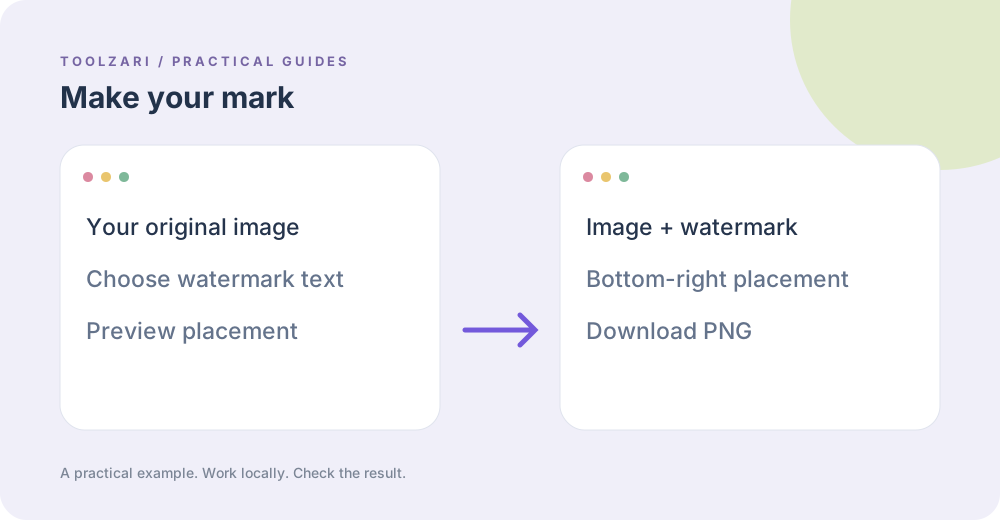
Keep an original copy of your image. Open Image Watermark, choose a local image file, and type a short label. The tool draws the image and adds outlined white text near the bottom-right edge so it remains visible over many backgrounds.
Export and inspect
Download the resulting PNG. Inspect the text over a light and a dark area and check that nothing important is covered. Very long labels are cut to 100 characters; the preview fits within a maximum 4096-pixel canvas dimension. Transparency and metadata behavior can change when a browser re-encodes an image.
Use the right edit first
Image Rotate & Flip can correct orientation before watermarking. Image Grayscale creates a monochrome version. Neither edit overwrites the original file; each exports a new PNG.
Limitations
This is a visible label, not a rights-enforcement system. A watermark can be cropped or edited. Only add markings to images you are entitled to use.
A small worked example
For a 1200 × 800 image, type a short label such as “Sample preview” and generate the result. The text appears near the bottom-right corner, with a dark outline behind white letters. If the photo already contains bright details there, examine the downloaded PNG at full size and choose another editor if you need exact position, opacity, font or repeated watermark patterns.
Tools used in this guide
- Image Watermark — Add a text watermark to a local image.
- Image Rotate & Flip — Rotate or mirror a local image.
- Image Grayscale — Convert a local image to grayscale PNG.