Identify the bottleneck
A large image can be heavy because its pixel dimensions are high, its encoding is inefficient, or both. Reducing dimensions changes how many pixels are stored; JPEG quality changes how an image is compressed; format conversion changes the container and often transparency. Make the decision based on your final use, not only the size of the original file.
Resize to a measured target
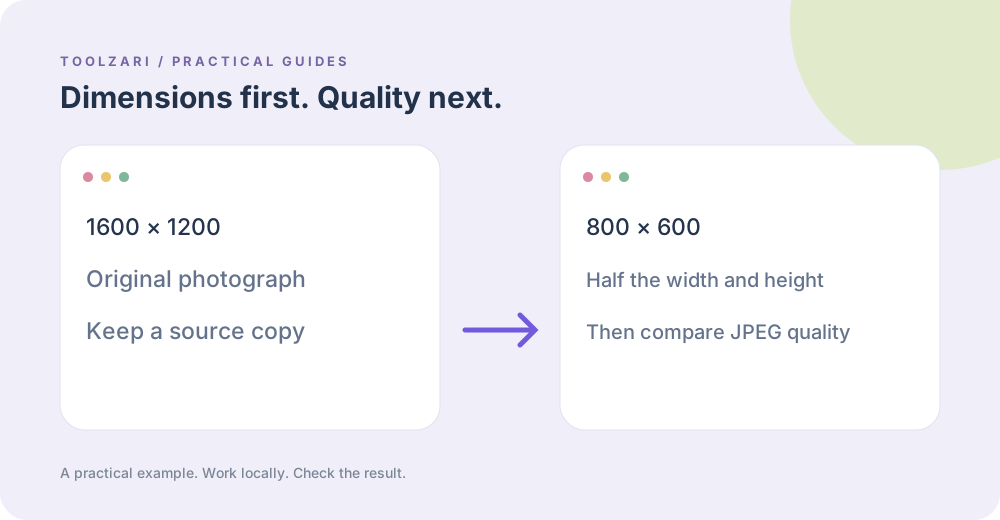
Choose a local image in Image Resizer and enter width, height such as 800,600. This edition sets both dimensions you request; it does not automatically preserve aspect ratio. If your original is 1600 × 1200, that example halves each dimension while keeping proportions. A 1200 × 800 source would be stretched into 800 × 600; calculate a matching target first.
Use JPEG for a photographic copy
Image Compressor exports JPEG with a quality value between 0 and 1. Start around the example value 0.7 and compare detail, halos and text at full size. Transparent areas become white. File size depends on the image content and browser encoder, so a lower quality setting does not guarantee a particular byte count.
Convert with a purpose
Image Format Converter supports PNG or JPEG. PNG commonly works well when you need transparency or crisp graphics; JPEG may be smaller for photographs. This tool cannot produce WebP, AVIF or a professional color-managed export. Keep the source and save the processed result under another name.
Verify the actual download
Check the exported file dimensions, transparency, visual quality and browser download behavior rather than relying solely on the preview. Canvas processing is capped to 4096 pixels per side, and input images are limited to 25 MB in this edition.
Tools used in this guide
- Image Resizer — Resize any image in your browser — set dimensions, choose JPEG, PNG, or WebP format, and download the result. Nothing uploaded.
- Image Compressor — Compress JPEG, PNG, and WebP images in your browser with no upload to any server. Reduce file size by up to 90% with adjustable quality.
- Image Format Converter — Convert a local image to PNG or JPEG using Canvas.
- Image Cropper — Crop any image online for free. Set crop position and size with sliders, lock aspect ratios like 16:9 or 1:1, preview live, and download the result as PNG — no upload required.