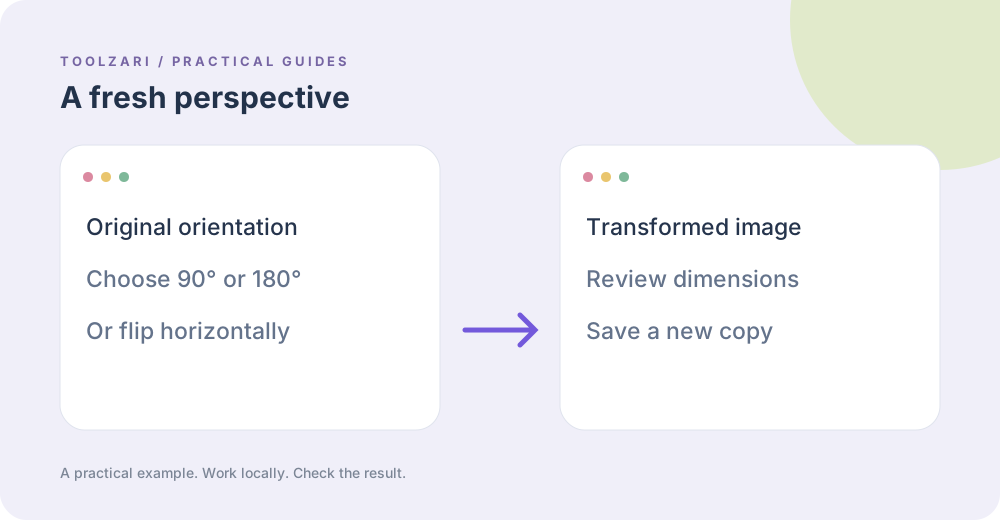
Pick the operation
Image Rotate & Flip accepts 90, 180 or 270 degrees, plus flip-h and flip-v. Choose a local image and enter one option. A 90-degree rotation exchanges the output width and height. Use a flip for a mirror image, not a rotation.
Make a grayscale copy
Image Grayscale computes luminance from red, green and blue values and keeps the alpha channel. It exports a PNG copy. This is a straightforward pixel conversion; it is not a full color-management or accessibility simulation.
Check the result
Download the output and inspect dimensions, orientation, crop and transparency. Browser Canvas caps the working size at 4096 pixels per side here, and file selection is limited to 25 MB. For print-critical work use an editor with color-profile controls.
Continue your workflow
Add a visible label with Image Watermark after rotating. If you need a specific final width and height, use Image Resizer separately, then verify the result.
A small worked example
A 1200 × 800 source rotated by 90 degrees becomes 800 × 1200. A horizontal flip stays 1200 × 800 but mirrors left and right. If you want black-and-white instead, select Image Grayscale rather than adding a CSS filter to a preview: its PNG contains the converted pixel values. Compare the downloaded file, not only the on-page canvas.
Tools used in this guide
- Image Rotate & Flip — Rotate or mirror a local image.
- Image Grayscale — Convert a local image to grayscale PNG.
- Image Resizer — Resize any image in your browser — set dimensions, choose JPEG, PNG, or WebP format, and download the result. Nothing uploaded.
- Image Watermark — Add a text watermark to a local image.