Choose an image that survives a small grid
A good Minecraft pixel art image has a clear outline, a simple background and a few strong colors. A small logo or sprite is easier to recognize at 32 × 32 blocks than a detailed landscape. Crop away empty space before converting: every background pixel can become another block to place. Keep your original image so you can compare successive attempts.
Convert an image to Minecraft pixel art
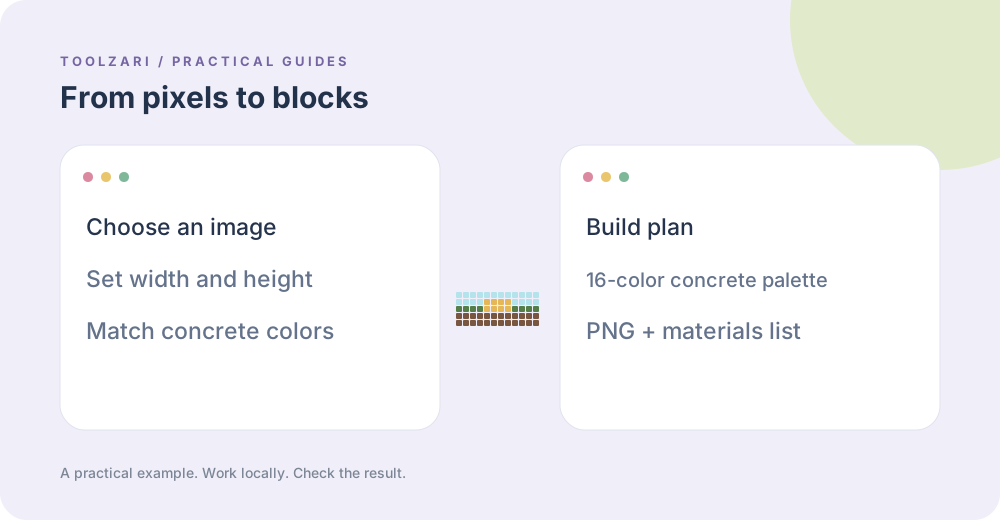
Open the Minecraft Pixel Art tool and choose a local image. Start with the 32 × 32 preset, then select Generate locally. The tool samples the image into a block grid and chooses the nearest approximate RGB color from 16 concrete blocks. It produces a flat front-view plan. It does not create a three-dimensional model or infer hidden surfaces from the image.
Pick width and height deliberately
The presets run from 16 × 16 through 128 × 128. Custom width and height each accept whole numbers from 8 to 128. A 32 × 32 plan needs 1,024 blocks; 64 × 64 needs 4,096; 128 × 128 needs 16,384. A larger plan preserves more detail but takes more space and materials. To keep a 2:1 image proportional, choose dimensions such as 64 × 32. Choosing a square stretches that source into a square.
Inspect the block palette
Concrete offers a compact set of recognizable colors, but it cannot reproduce every photographic shade. Fine gradients can collapse into the same block. Transparent areas are composited onto white before matching. Zoom in to inspect edges and hover a cell to see its column, row and block name. Resource packs, shaders and in-game lighting can make the real build look different from the flat preview.
Use the materials list
The Details field lists the concrete names, block counts, full stacks of 64 and the remainder. For example, 130 blocks correspond to two full stacks plus two blocks. The sum of every material count should equal width multiplied by height. Gather some extra material if you expect to edit the plan while building. The list counts the visible artwork only, not scaffolding, supports or a surrounding frame.
Download and build in a consistent order
Save the PNG preview and download the Details text before leaving the tab. Build from the top-left of the plan, one row at a time, or mark completed rows on a separate copy. PNG and text exports are available; .schem and .litematic exports are not. If you need those formats, use a dedicated editor and validate its Minecraft version support. Do not rename the PNG extension and expect it to become a schematic.
Fix a disappointing conversion
If the subject is unclear, crop closer or try a larger grid. If it looks stretched, match the source aspect ratio with the width and height fields. If the colors are muddy, try a simpler source with stronger contrast. Change one setting at a time so you can tell which edit helped. A recognizable small build is often more practical than a very large image with distracting detail.