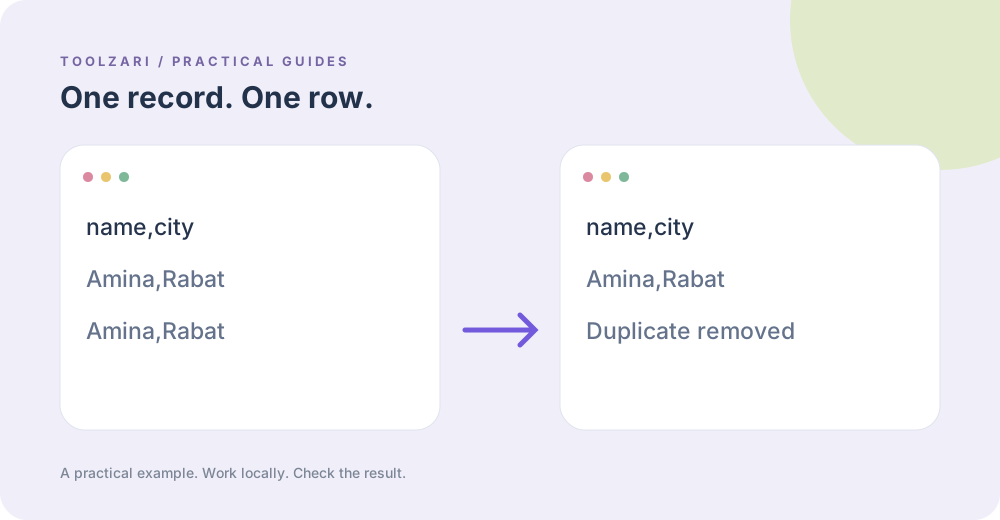
When duplicate rows happen
Exporting contacts or orders twice can create repeated CSV rows. Before removing anything, keep a copy of the original file and decide whether an entire row must match or whether a single ID or email column defines a duplicate. Those choices produce different results.
Clean a small CSV locally
Open the CSV Deduplicator and paste the comma-separated data. Leave the optional header field empty to compare every cell in a row, or type an exact header such as email to retain the first row for each address. The tool keeps the header and the first matching record. Copy the output into a new .csv file; it does not change your original file.
Check the output
Count the rows before and after, then inspect a few repeated keys by hand. For example, two rows with the same email but different order dates should not be merged if each represents a real order. If you only need certain fields, use CSV Column Selector after deduplication. The parser handles quoted commas and escaped quotes, but it expects the same number of columns in every row.
When to use another method
Large files, multiple header rows, semicolon-delimited exports, and complex rules need a spreadsheet or a script with an explicit data model. This browser tool is intended for small, ordinary CSV files.
A small worked example
Use email,city as the header, followed by amina@example.com,Rabat, omar@example.com,Fes, and the Amina row again. With no key selected, the final row is removed because it repeats the whole record. With email as the key, the first row for each email is kept even if a later city changes. This is why reviewing the definition of “duplicate” matters before changing a business list.
Tools used in this guide
- CSV Deduplicator — Remove duplicate CSV records by row or header.
- CSV Column Selector — Select CSV fields by header name.
- CSV to JSON Converter — Convert CSV or TSV rows into JSON objects with instant output.